
Walk-thru
Here are the detailed steps to creating an account on the Pacific Pyros website. Note: An account is created automatically when you purchase a membership. Below are screenshots to make the process easier. If you prefer to follow a printed guide you can download the PDF below.
Membership Selection Steps
Go to Membership on the main menu.
Click on New Membership if you are a new member.
Note: Unless you have previously registered in this system, you will be considered a new member.
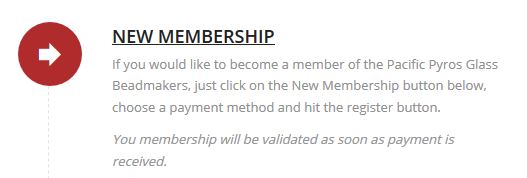
Click on Membership Renewal if you have had a membership in the past and already have an account in this system.
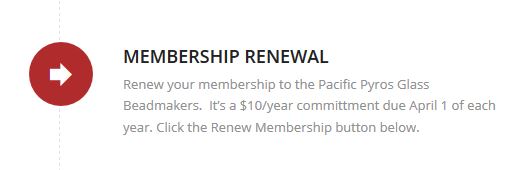
Once you’ve made your selection, click on the appropriate button: JOIN NOW for new memberships OR RENEW NOW for renewals
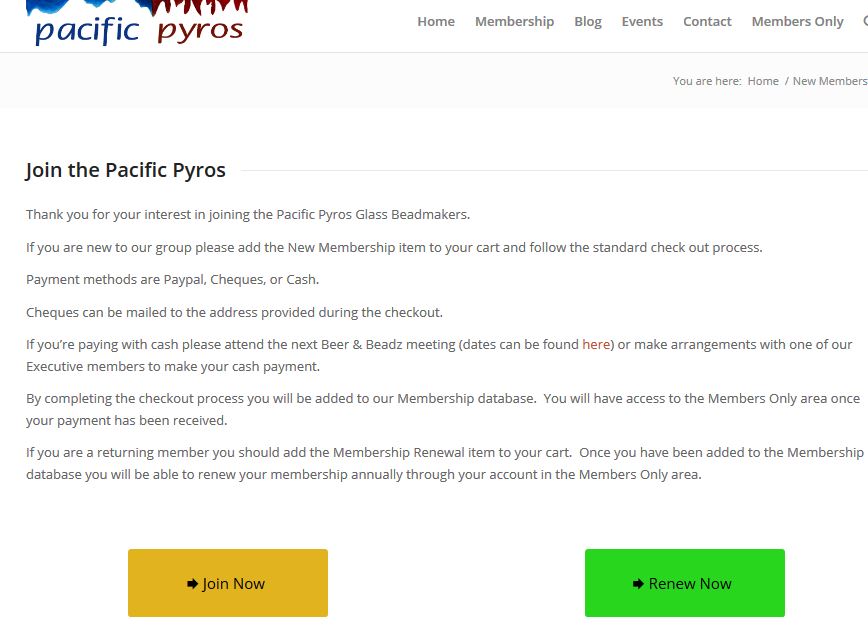
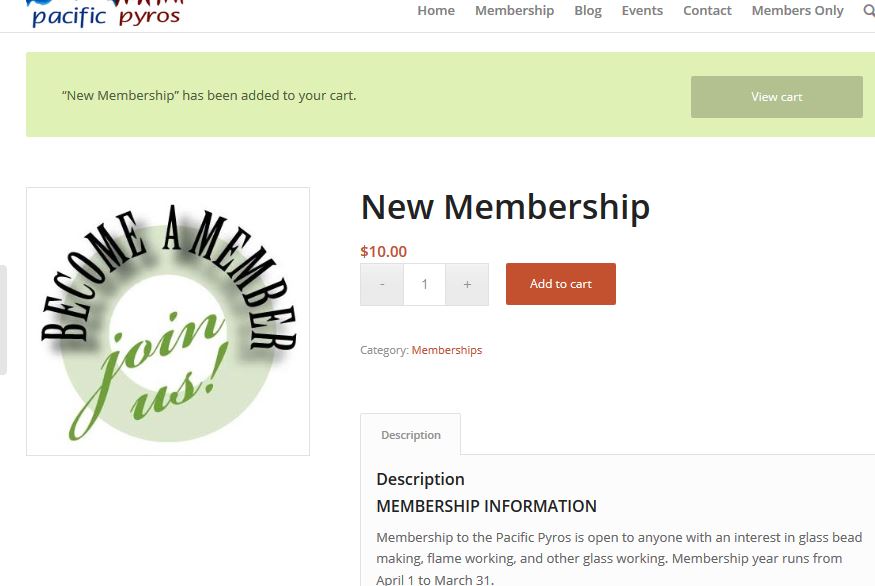
From here it’s basically a checkout process: Add the appropriate item to you shopping cart.
Proceed to checkout and Complete the billing details form
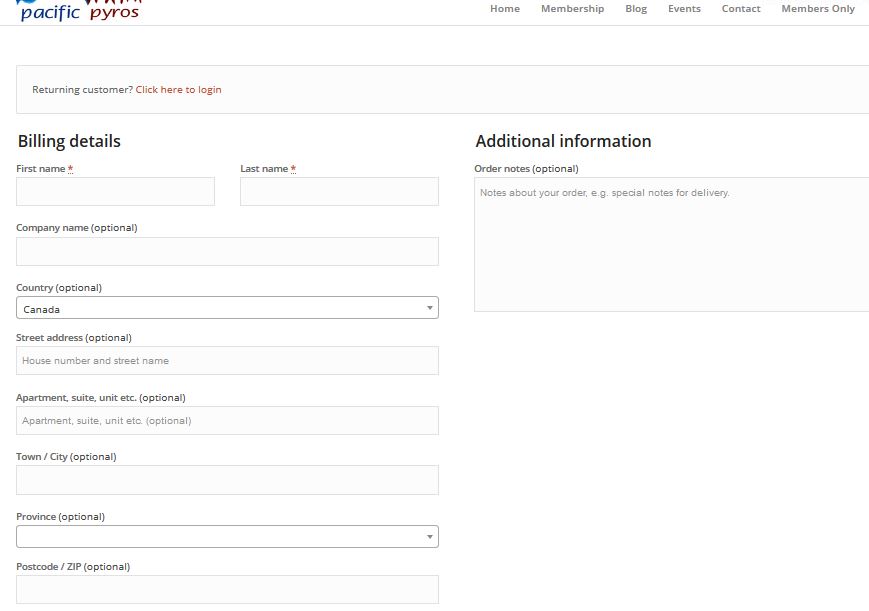
Select a payment method
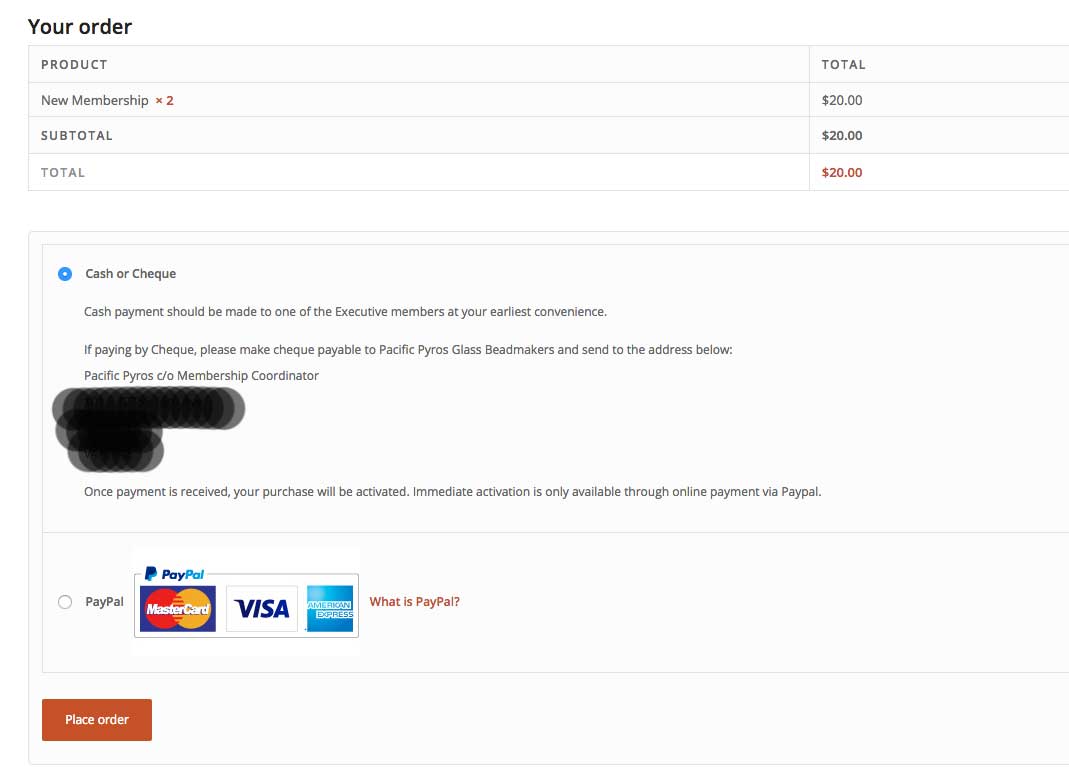
Please note that we no longer accept Paypal. Payment should be made by e-transfer, cash, or cheque. Instructions will follow on the order confirmation.
Place order
After You Place Your Order
After you place your order you will receive a couple of emails. One thanking you for your order, and another welcoming you to Pacific Pyros.
The Welcome email contains your username and password. You can choose to keep this password or log in using the link in the email to your account and change your password to something of your choosing. Strong passwords are required.
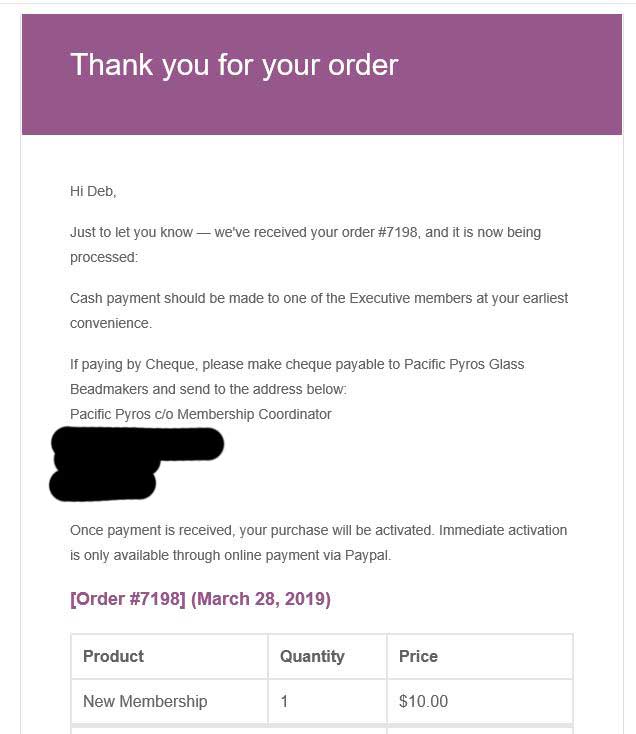
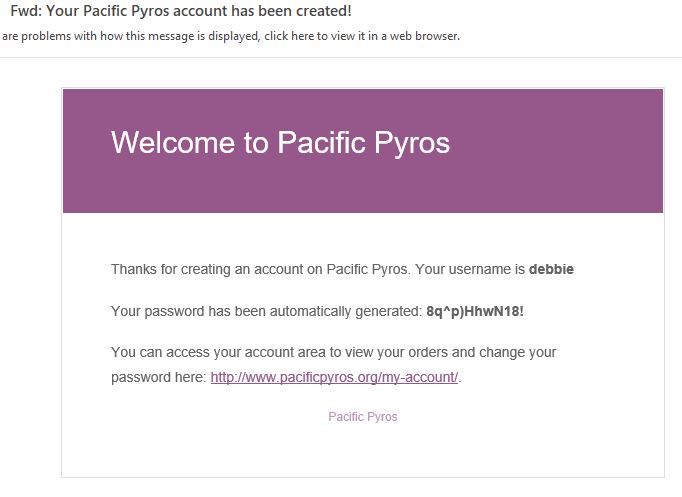
To log in to the Members Only area, click on the Members Only menu item and enter your username and password.
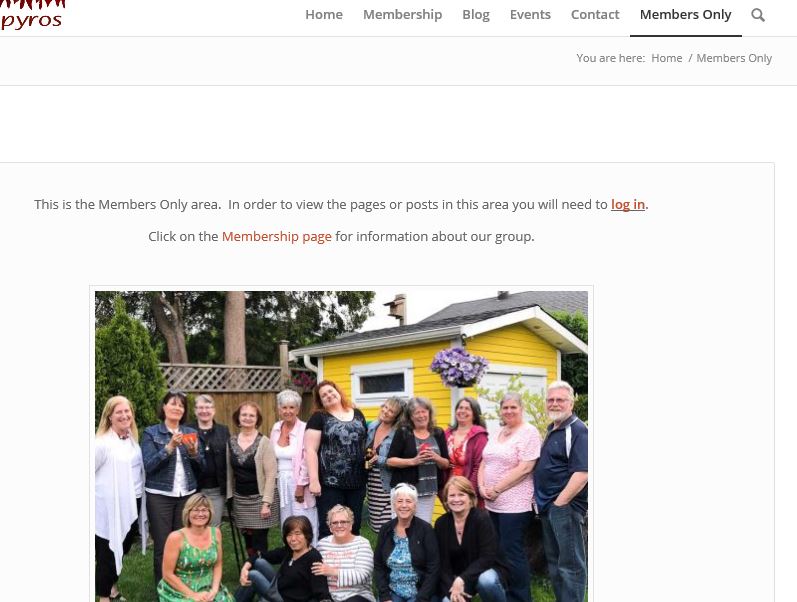
If successfully logged in, you should immediately see the Members Only page and content.
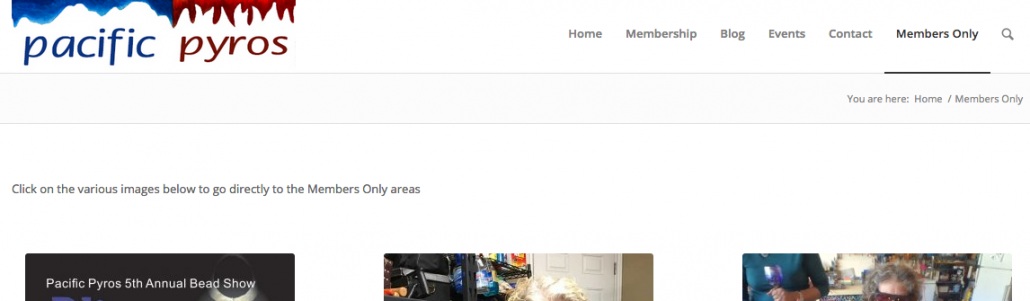
If you do not see this, or are redirected back to a page stating you need to log in or purchase a membership, this could be the result of the following:
- You paid by cash or cheque and your status is still Processing, not Completed
- You have not purchased or renewed your membership
- You entered your username and/or password incorrectly
Item 1 refers to the process of confirming your payment. This is a manual step managed by either the webmaster or the membership director.
Note: You will receive an email when your order is marked Completed (no longer Processing). Once that happens, you should have no problem logging in to the Members area.
If you are still having trouble logging in, please contact Debbie at info(at)pacificpyros.org
Please remember to log out when leaving the Members area. You can log out by clicking on the submenu item My Account, then clicking Logout under account details.
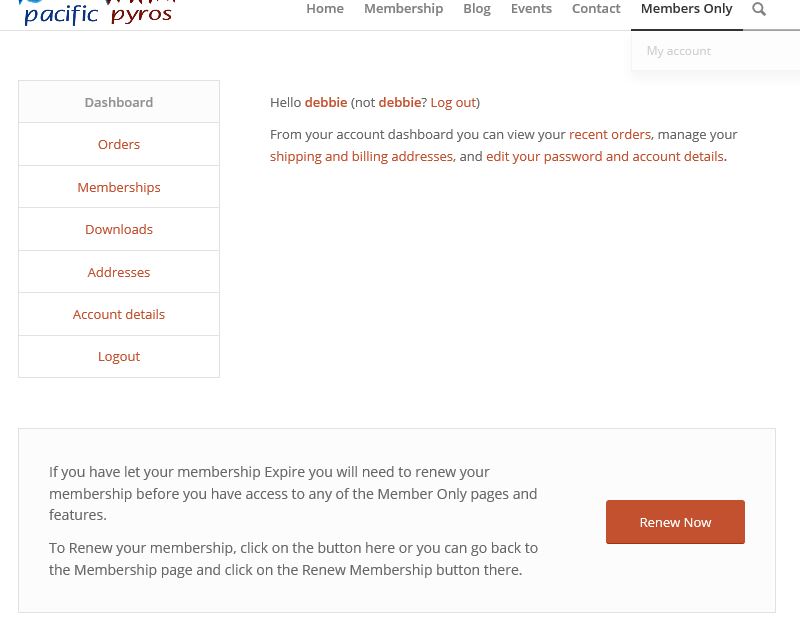
How to Reset Your Password
To access your account, click on the Members Only menu item. You will see the group picture asking you to log in or purchase a membership.
From here, click Log In and enter the username and temporary password you received in the Welcome email.
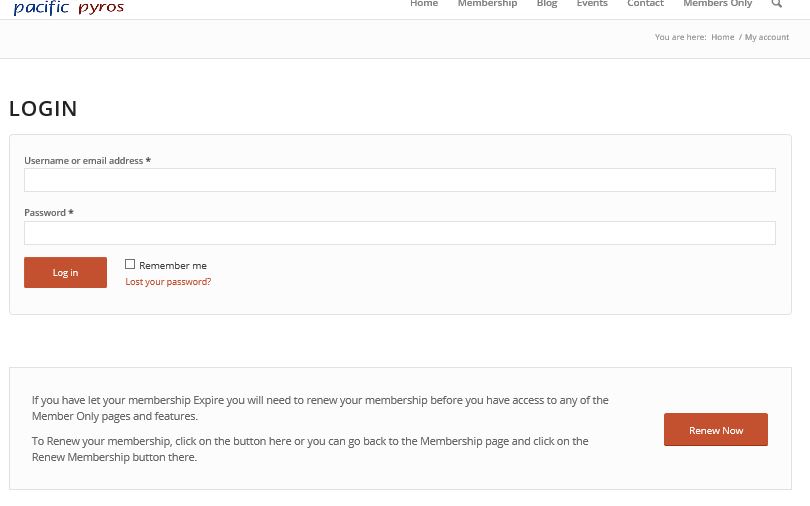
Once logged in, you will see an account dashboard. Here you can:
- Review or change your address and contact details
- Change your password
- View your orders
Your orders will include membership purchases and renewals, Bling registration, and any other purchases made through the Members Only area.